Overtime HQ logs your overtime and paid details, makes your OT slip, tells you which check it should be on, and checks it against what the city actually paid you.
You type the times you worked. The app takes out your tour, does the pay math and gives you the pay date.
Built by an officer who got tired of doing the math on paper.
HomeOT calculatorDid you work it?
Money
Your pay, from ESS
Sign in to NYC Employee Self-Service inside the app. It pulls your pay stubs (up to two years), paid overtime and W-2 wages
Every check, year-end projections and year-over-year comparisons
Pay rates by rank from the published salary charts
An overtime tax deduction worksheet for your accountant
Paycheck statsEvery checkProjectionsPay rates
Overtime
Type your times. The math is done.
Post-tour, pre-tour, RDO, recall, wrap-around, overnight and holiday overtime, plus travel time
Cash, comp time or split, with the expected pay date from the pay schedule
Overtime that starts at 1945 or later counts for the next day, the way your check shows it
Scan a photo or PDF of your OT slip and the app fills in the entry for you to check
A clean OT slip after every entry, ready to print or email
Day off, pre or post tour, travel timeScan your slipEvery entry, searchableOT window and pay date
Get paid what you worked
Nothing slips through
Missing overtime: every unpaid entry and the check it should be on
ESS vs. my log: overtime the city paid that you never logged
Month, quarter, year to date and last 12 months, with caps and tour changes
Overtime by type, and monthly, quarterly and yearly charts
Missing overtimeESS vs. my logMonth overviewOT by type
Paid Detail
Every detail, every vendor
Log shifts with PDS #, vendor, location and automatic pay math
Photograph your paid detail card or check and keep it with the shift
Import your history from the paid detail site PDF or screenshots; duplicates are skipped
A year-end tax report with vendor totals for your tax preparer
Reminders before each shift and before the drop deadline
Five ways to logPaid and unpaidVendor breakdownTax report
Schedule
Your chart, filled in
Calendar with RDOs, overtime, paid details, vacation and paydays, color coded
Squad charts or your own rotating schedule
Leave banks read from your latest pay stub
Tap a day to see what you worked, what it paid, and add an entry
Overtime, details, RDOsMonth calendarTap a dayRDO with a detailSquad rotation
Shared calendar Coming in 1.1
Fill your OT slots without the group text
Post a slot: the date, the times and how many people you need
Share your calendar by code or link. People sign up, or ask for a spot
Approve or decline requests, or let sign-ups go straight in
Super teams with a leader and co-leaders, who choose who can post
Mark days you’re not available. Others see “Unavailable”, never the reason
Only your name and the slots you post are shared. Your pay and OT log stay on your phone
Slots coming upSign upApprove requestsShare by code or linkSuper teamsDays not available
Shared calendar
See the month before you post
Post a slot on your own month: your overtime, details, RDOs, vacation and events, in the same look as your Schedule calendar
A teammate's month shows only two things: their can't-do days, shaded, and their posted slots with the hours
One combined month for everyone you follow, a color per person — tap a name for their month
Post to all your calendars at once: one spot means one spot, no matter how many groups see it. Cancel removes it everywhere
Post on your own monthA teammate's monthEveryone you followOne slot, three calendars
Team calendar
Who's doing what, at one glance
Each super team gets a calendar: every shared entry in the member's color, with initials, what it is and the hours
Sharing is never automatic — share one entry at a time, to the team you pick, from your own day view
A vacation shows on every day it covers; the team's open slots show so someone can pick one up
Tap an entry for who, when, the note — and comments. The person who shared it and leaders can take it down
Only the kind, days, times and an optional note go. Never pay, slips or the event's notes
The team monthEntry + commentsA day's listShare from your own day
Did you work it? Coming in 1.1
From slot to OT log in one tap
When a slot ends, Home asks if you worked it. Yes puts it in your OT log with the slip and the pay date. A short slot on a work day is added to your tour, the way the slip is written:
Slot 0500–0900 after a 2037 tour Worked 2037–0900 · Scheduled 2037x0500 4:00 post-tour
If the app can’t tell, it asks for your tour that day, or you finish it in the OT form.
Home asksLogged in one tapAsks for your tourOr the OT form
Retirement
Plan your 20, or your 25
Tier 2 and Tier 3 pension estimates from your own pay and service time, using the published plan formulas
Compare retiring at 20 through 25 years
Pension Lab: ASF projector and other what-ifs
401(k) and 457 trackers against the yearly limits, plus loan calculators
Pension calculatorRetire at 20 to 25Pension Lab457 tracker
Retirement
The decisions around your pension, in plain words
Escalation and the 20-year decision, Tier 2 COLA, retiree health, disability, 457(b), buybacks, working after you retire, and the VSF — each with its source
Retire at 20 or 25 now counts the escalation gate
Buybacks include the Chapter 58 purchase for Tier 3
Where the book and the Fund can differ, it says Ask the Fund
Pension decisions
Other agencies
More than the NYPD now
Pick your agency: NYPD, Nassau County PD, Suffolk County PD, New York State Troopers, Village of Ossining PD, or Other agency
Other agencies enter their own pay, OT rate and RDO pattern — no NYPD rank, chart or ESS needed
NYPD-only parts (ESS, Paid Detail, pension calculator, pay charts, squad presets) stay hidden for other agencies
Every agency screen shows its pay scale with the as-of date, and a button to send an updated pay scale
Pick your agency firstEnter your own payRDO pattern, send a pay scaleYour tier, picked by youMy agency's pensionPay scale, as-of on top
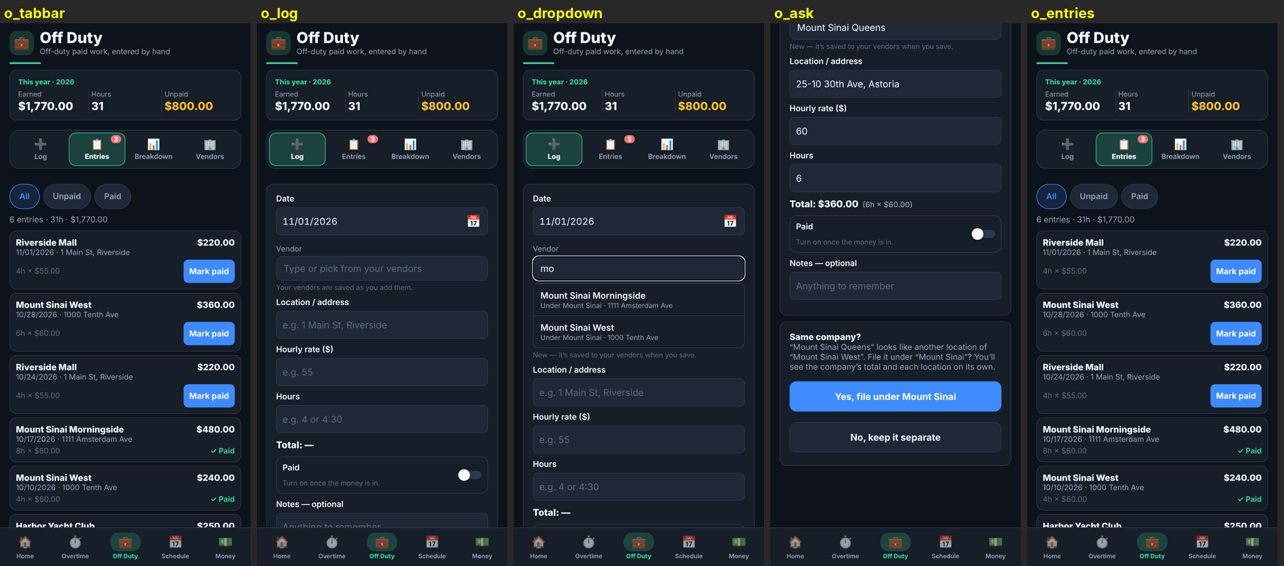
Off Duty
Off-duty work, without the NYPD systems
For every agency other than NYPD, the Paid Detail tab is Off Duty: log work by hand with vendor, location, rate and hours
Every new vendor name saves to your own vendor list and fills in next time
When a new name looks like another location of a company you already have, the app asks before filing it under that company — never merged on its own
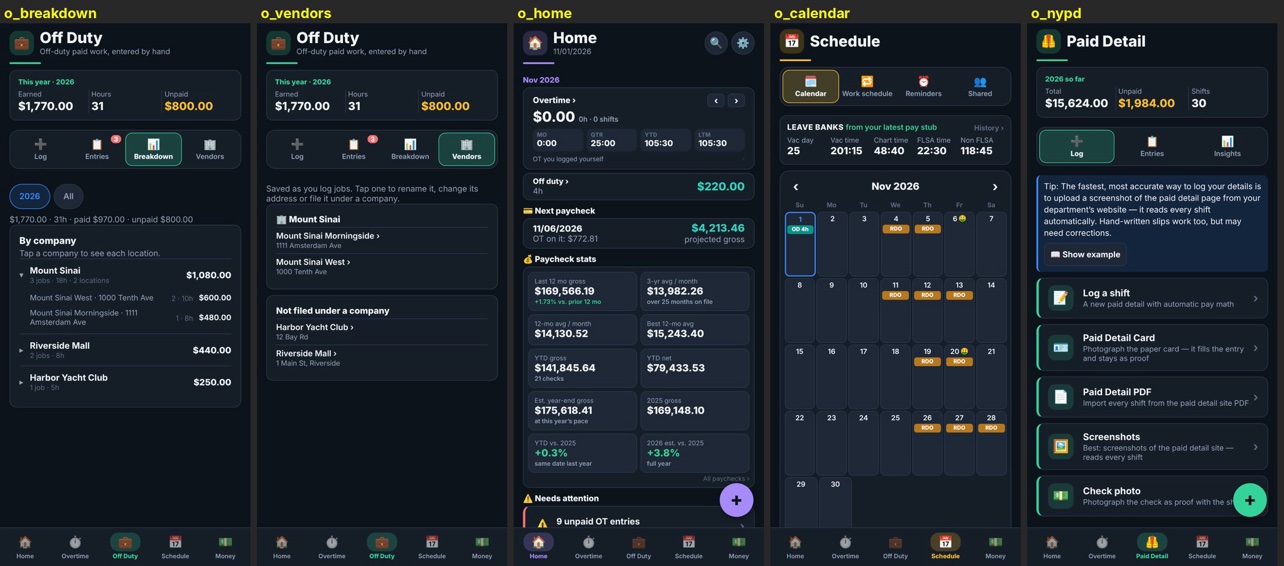
Breakdown by company, with each location on its own row. NYPD keeps Paid Detail exactly as it is
Off Duty tab, log form, vendor dropdown, Same company? prompt and entriesBreakdown, vendors, home card, calendar chips and NYPD Paid Detail unchanged
Direct share
Offer a slot to one person
Pick one person from your calendars when you post a slot, or on a slot you already posted
Only they see it. They accept or decline; a decline sends it back to you
Posting to a calendar stays exactly as it is
Post a slot: only people you pickThey accept or declineA decline brings it backShare a posted slot directly
Private by design
Your numbers stay on your phone
Encrypted on your phoneYour overtime, pay, paystubs and ESS records are stored on your phone, encrypted. Overtime HQ has no copy of them.
Your ESS login, behind Face IDIf you choose to save it, it stays in your phone’s Keychain and is never sent anywhere.
You sign in to ESS yourselfOn the City’s own page, including any verification code. The app never stores your codes.
No ads, no trackingNo analytics and no advertising. The shared calendar is optional and shares only your name and the slots you post.